
Describe the activity. Pimenko AI prepares the first version and the ones that follow.
Describe your teaching intention, attach documents and get an activity ready to review, improve and correct. A catalogue of activities that grows with each version.
From teaching intention to activity, without losing control.
Describe the teaching intention, choose a format and receive a first proposal to review, without outsourcing course design. Pimenko AI does not replace design work: it speeds the path from idea to activity.
You remain the course author
You review, adjust and add. Nothing is added to Moodle without your confirmation.
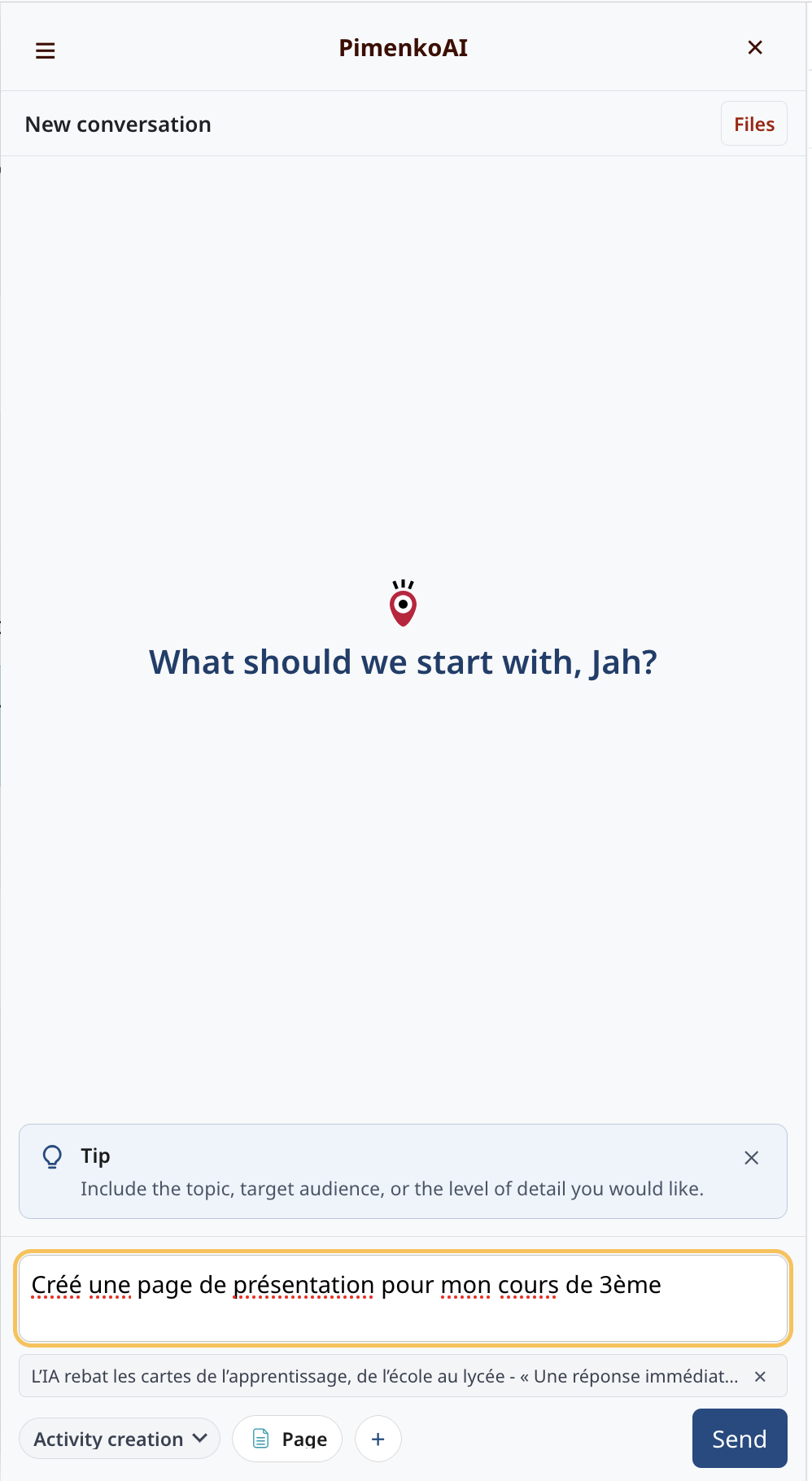
A growing catalogue of Moodle activities, H5P content types and formats, expanded with each release.
Catalogue available today
Page · Assignment · URL · Label / text · Forum · Glossary · Moodle Quiz.
H5P content
True/false, multiple choice, mixed quizzes, interactive presentations, interactive books, essays, fill in the blanks, cards, flashcards, crosswords and more.
An activity can be reviewed. A whole course must be rebuilt.
Targeted generation keeps the loop short between intention, proposal and the teacher's decision. That is what turns time saved into time genuinely recovered.
You approve it, then it enters the course.
You describe what you want, preview it and request adjustments. The activity joins your course when it suits you, not before. You also choose where it is added in the course.
From intention to activity
- Describe the teaching intention
- Choose the activity type
- Optionally attach resources
- Get a preview
- Adjust or regenerate
- Choose the course section
- Confirm the addition in Moodle
The assistant prepares. The teacher decides.
Nothing is added to the course without explicit confirmation.
Work from your resources
The Creation conversation can receive documents, presentations, spreadsheets, text, subtitles and images, within configured limits.
Files are subject to available Moodle mechanisms, including antivirus scanning where configured. Their educational use then depends on the associated processing service.
From intention to preview, with approval.
A short video can show the conversation, format choice, course section selection, preview and confirmation in Moodle.
Watch the demonstration
Keep exploring
discover the other modes · calculate your usage · your content hosted in France