 P
AI in Moodle: what the platform really does, and how to use it
Does Moodle include artificial intelligence? Yes, and it has done for longer than people often think. Since version 4.5, released in October 2024, Moodle core has contained an AI subsystem. It is a shared architecture that lets you connect a language model to the platform and offer AI features to teachers and learners alike, while respecting everyone’s roles and permissions. Four versions later, Moodle 5.3 offers seven model connectors, course-level and activity-level settings, and usage reports that reach right down into courses.
So the question is no longer whether Moodle “has AI”. The real questions are what it does once enabled, what it does not do, and how to extend it without losing control of your data.
We wrote this guide as a certified Moodle Partner, drawing on our development work on this subsystem. It covers how the subsystem works, what each version adds, how to enable it, the criteria for choosing a provider and a plugin, and what research says about the effect of AI on learning.
In brief
- The AI subsystem has been included in Moodle since version 4.5. It is free. Only the model service you connect to it may be paid for.
- It is built on three components: providers (the model that responds), placements (where AI appears) and actions (what it does).
- Out of the box, Moodle 5.3 lets you generate text and images in the editor, and summarise and explain the content of a course page.
- Everything is disabled on installation. The administrator chooses the provider, enables the placements and sets permissions by role. Since Moodle 5.1, teachers can then enable or disable AI per course and per activity.
- Plugins go further: activity creation, tutoring, search, administration. Their quality depends first and foremost on how well they integrate with the official subsystem.
How AI works in Moodle
The official documentation describes three components. Understanding their role lets you make sense of any AI offering for Moodle, ours included.
Providers: which model responds
An AI provider is the connector between Moodle and a language model service. Moodle 5.3 ships with seven: Amazon Bedrock, Anthropic Claude, Azure AI, DeepSeek, Gemini, Ollama and OpenAI. Most of them send requests to an online service. Ollama is the exception: it lets you run a model on your own servers. Other services compatible with the OpenAI API can also be connected.
Since Moodle 5.0, you no longer configure “a” provider but provider instances. For example, you can assign summaries to a lightweight, low-cost model and text generation to a more powerful one. When several instances are enabled, the administrator sets the order in which they are used. Each instance can also be given a limit on requests per hour, both site-wide and per user. This is the first lever for keeping costs under control.
Not every provider can do everything. The Claude connector, added in Moodle 5.3, does not generate images, for example. So for each instance, the administrator chooses which actions it will handle.
Placements: where AI appears
A placement defines where in the interface AI comes into play. Moodle provides two out of the box: the text editor and course assistance. A plugin can add its own placements, such as a chat window or a button within an activity.
Actions: what AI does
Actions are the concrete operations: generating text, generating an image, summarising, explaining. Which ones are offered to a user depends on the site configuration, the context they are in (course, activity) and their Moodle capabilities.
At the centre, an AI manager applies rules common to all. Every user must accept the AI usage policy the first time they use AI, once only, regardless of which placement is used. Every request is logged in the usage reports.
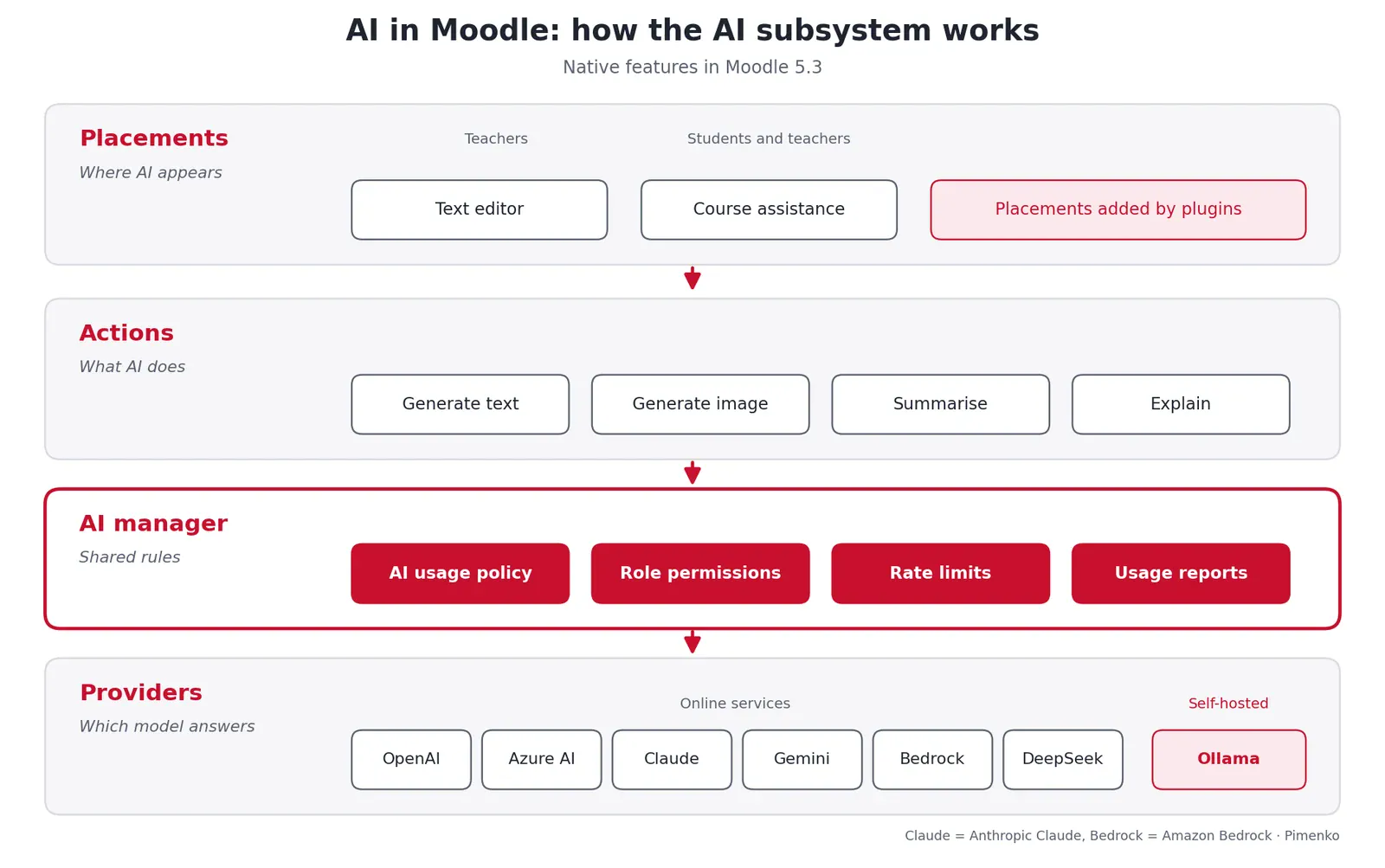
This architecture is more than a technical detail. A plugin built on it inherits the usage policy, role-based permissions, quotas and reports. A plugin that bypasses it has to reimplement all of this itself, and generally does so less well.
AI in Moodle, version by version
The subsystem gains new features with each version. This table helps you see what your platform actually offers.
| Version | What it adds |
|---|---|
| 4.5 LTS (Oct 2024) | AI subsystem. OpenAI and Azure AI providers. Text and image generation in the editor, summarising in course assistance |
| 5.0 (Apr 2025) | Ollama provider (models hosted on your own infrastructure). “Explain” action. Multiple provider instances and processing order |
| 5.1 (Oct 2025) | DeepSeek provider. Teachers can enable and disable AI, in the course settings and then in each activity |
| 5.2 (Apr 2026) | Amazon Bedrock and Gemini providers |
| 5.3 LTS (Oct 2026) | Anthropic Claude provider. Course-level AI usage report, for teachers and learners |
Moodle 5.3 is the new long-term support (LTS) release, with security support until October 2029. It is the logical target for an institution still on 4.5 that wants to benefit from everything above.
One point to bear in mind if your platform is still on 4.5 or 5.0: teachers have no simple way to switch AI off within an activity. The Moodle 5.0 documentation says so explicitly. For an institution that wants AI kept out of assessments, upgrading to 5.1 or later makes all the difference.
What Moodle does natively with AI
Here is what is available in Moodle 5.3 without any additional plugin.
| Placement | Actions | Typically for |
|---|---|---|
| Text editor | Generate text, generate an image | Teachers writing a resource or instructions |
| Course assistance | Summarise or explain the main content of a page | Learners who want a rephrased version, teachers |
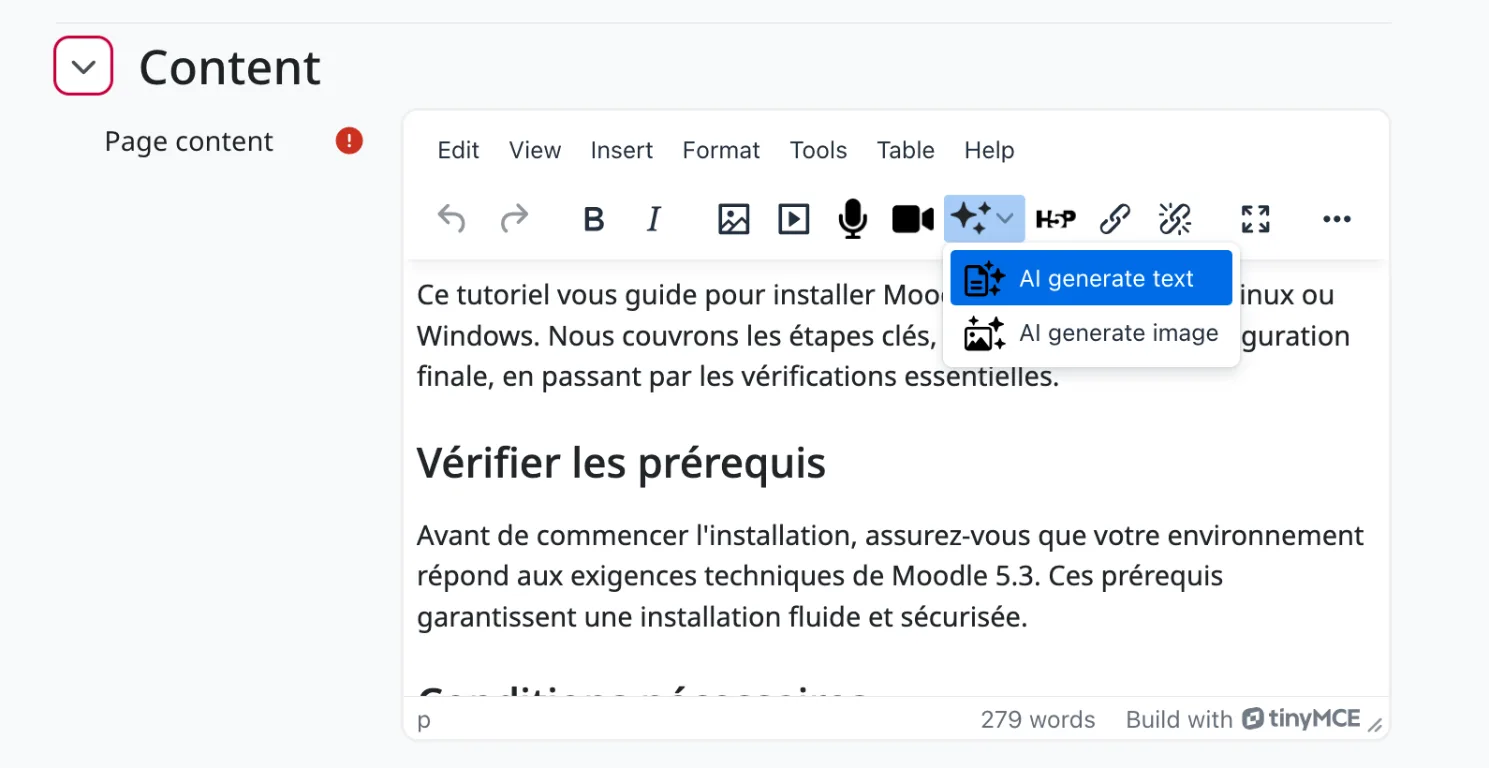
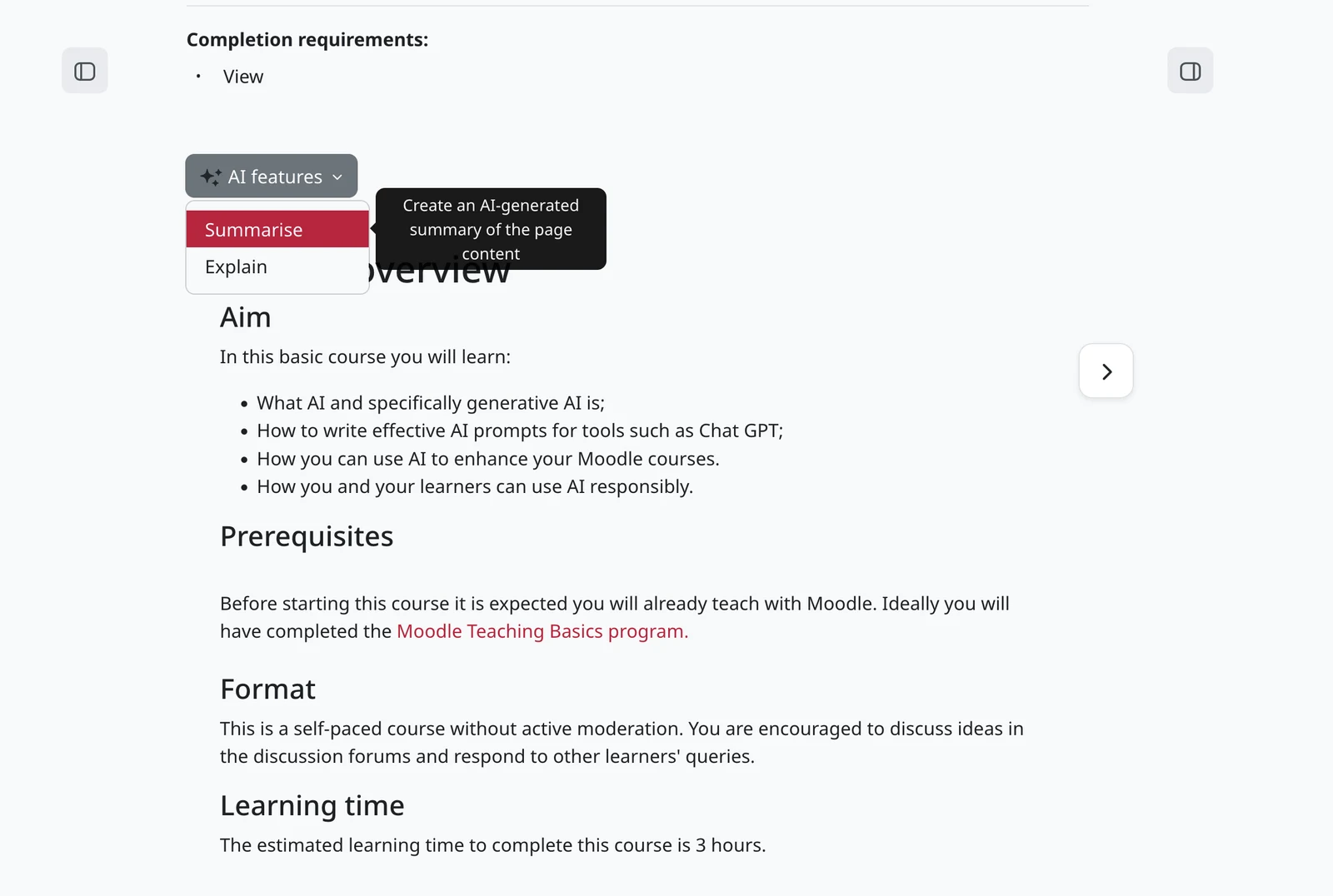
In practice, a teacher clicks the AI icon in the editor toolbar, chooses “AI generate text” or “AI generate image”, describes what they want, then edits the result before saving. On the learner side, an “AI features” button appears at the top of course pages: “Summarise” gives a condensed version, “Explain” a rephrased, more in-depth one.
What Moodle does not do natively
It is also important to be clear about the limits. The native features are one-off actions on a piece of text. Moodle does not natively offer:
- creation of a complete activity (quiz, lesson, H5P content) from a document;
- a conversational tutor that knows the whole course and supports learners over time;
- natural language search across all the courses on the platform;
- help with site or course administration (accounts, enrolments, reports).
These are precisely the uses that plugins address.
We saw this for ourselves when designing our own assistant. The native actions work on the text they are given, without knowing anything about the rest of the course. For a tutor to answer from a course’s actual content, we had to index that content and have Moodle recheck, on every request, what the learner is allowed to open. For a generated activity to be usable, we had to produce real Moodle activities that can be previewed and are added to the course only after the teacher has approved them. That kind of work cannot be done in a text field.
The cost also scales up significantly. On our test platform, an activity created in five exchanges with the assistant uses around 28,000 tokens with the standard profile, and around 68,000 with the Premium profile, which uses a more powerful model. Before rolling out a use case, measure it on a pilot course.
Enabling AI in Moodle, step by step
These steps are intended for the platform administrator. The labels are those of the English Moodle 5.3 interface.
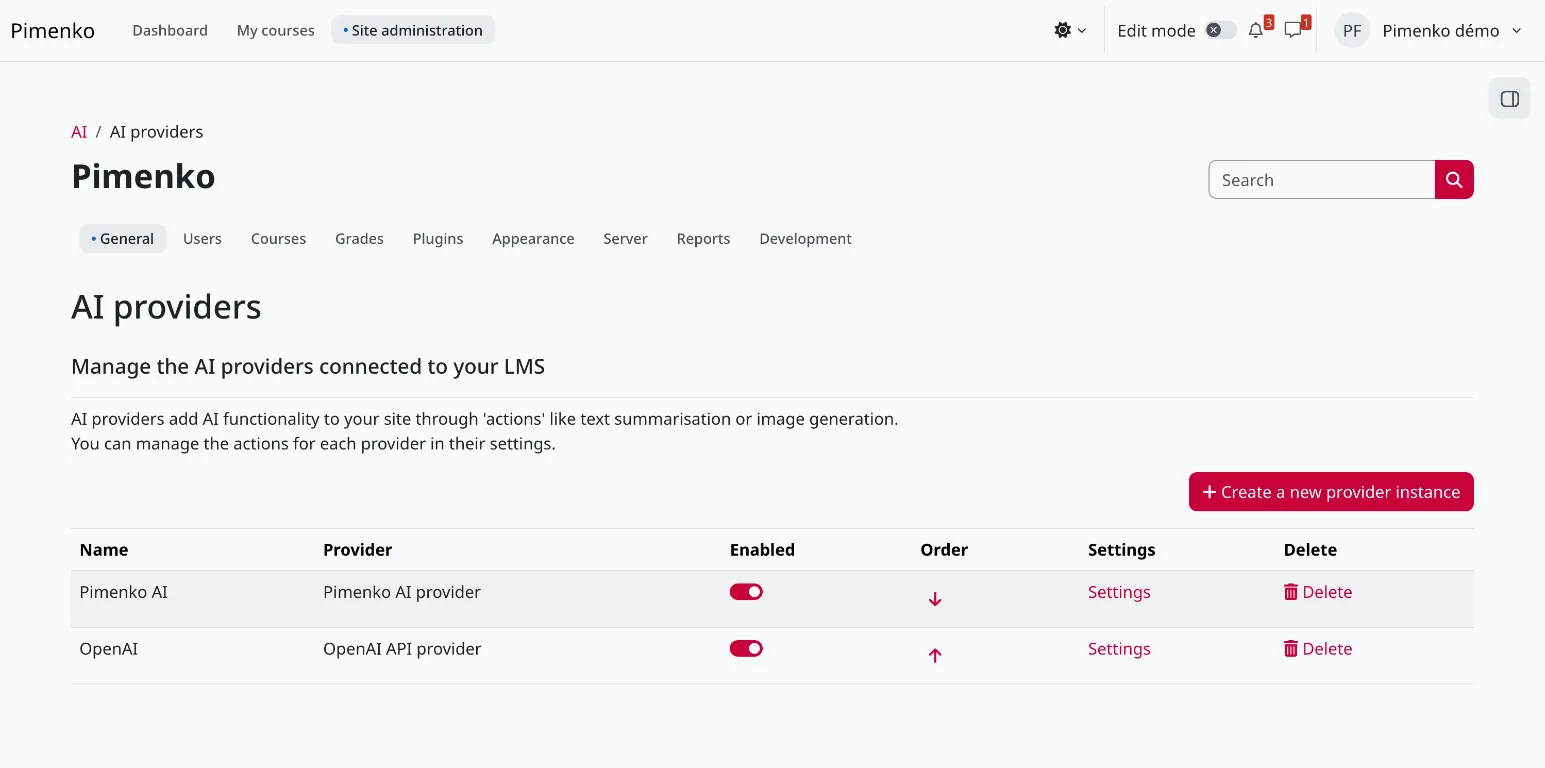
1. Create a provider instance. In Site administration > General > AI > AI providers, click “Create a new provider instance”. Choose the connector, enter its settings (API key, endpoint, model), then enable the actions it will handle in its “Action settings”.
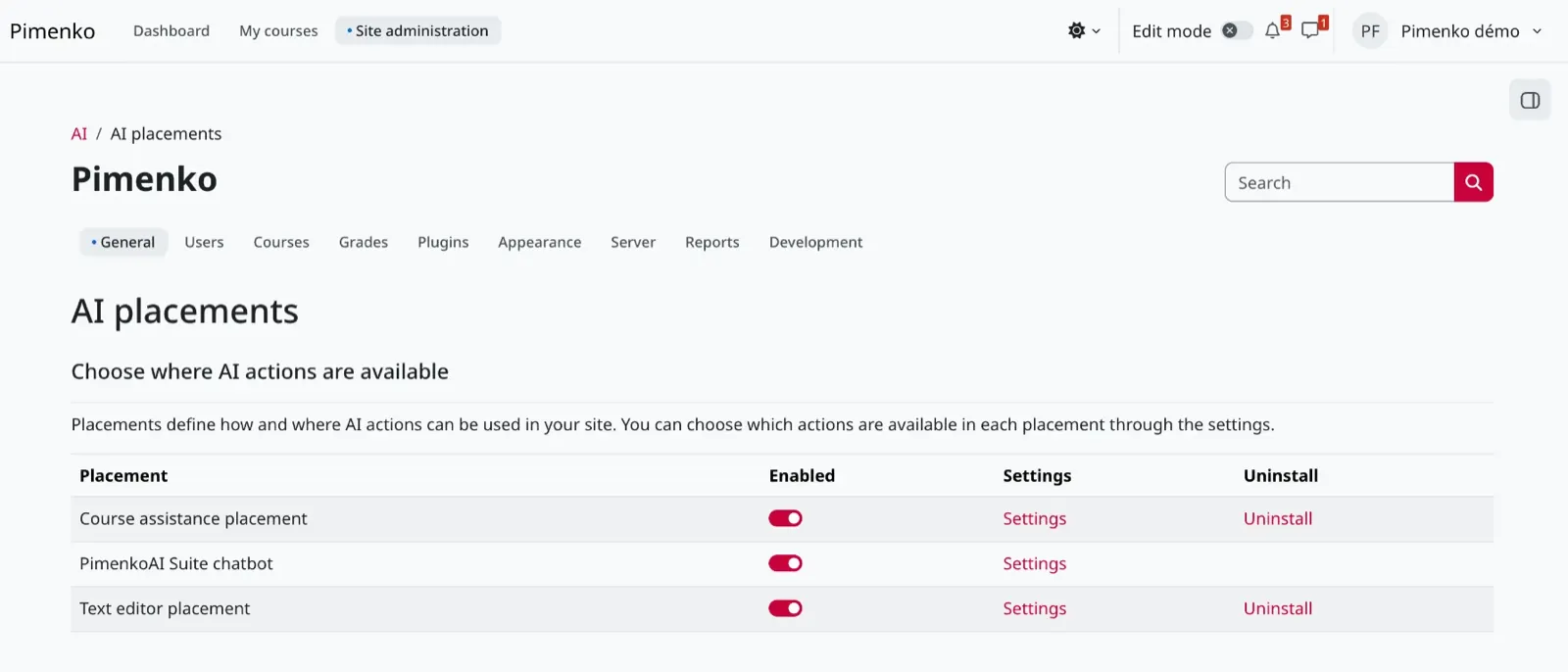
2. Enable the placements. They are disabled by default. In Site administration > General > AI > AI placements, enable the “Text editor placement”, the “Course assistance placement”, or both. In their settings, select the actions to offer.
3. Set permissions by role. This setting applies to Moodle’s native AI features: generating text or an image in the editor, and summarising or explaining a course page. By default, their capabilities are allowed for the Manager, Teacher, Non-editing teacher and Student roles, so a student can also generate text or images in the editor. If you do not want this, set the relevant capability to “Prevent”. For the whole site, this is done in the Student role definition (Users tab of Site administration). For a single course, it is done in Participants > Permissions.
Plugins define their own capabilities. With Pimenko AI, for example, activity creation is restricted by default to the Teacher and Manager roles: students do not have access to it.
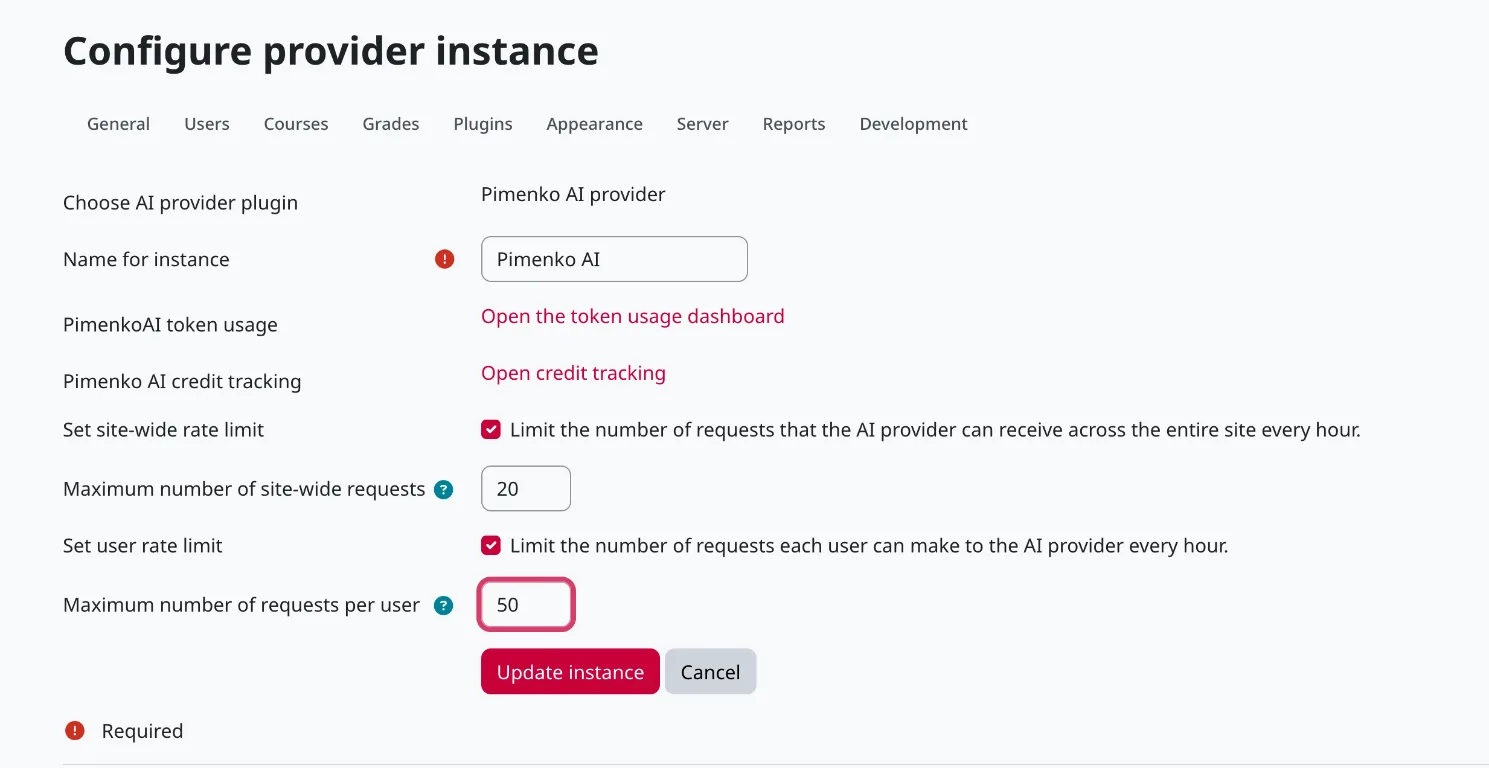
4. Set limits. In the settings of each provider instance, define a cap on requests per hour for the site and per user. Without a cap, the bill from the model service depends entirely on usage.
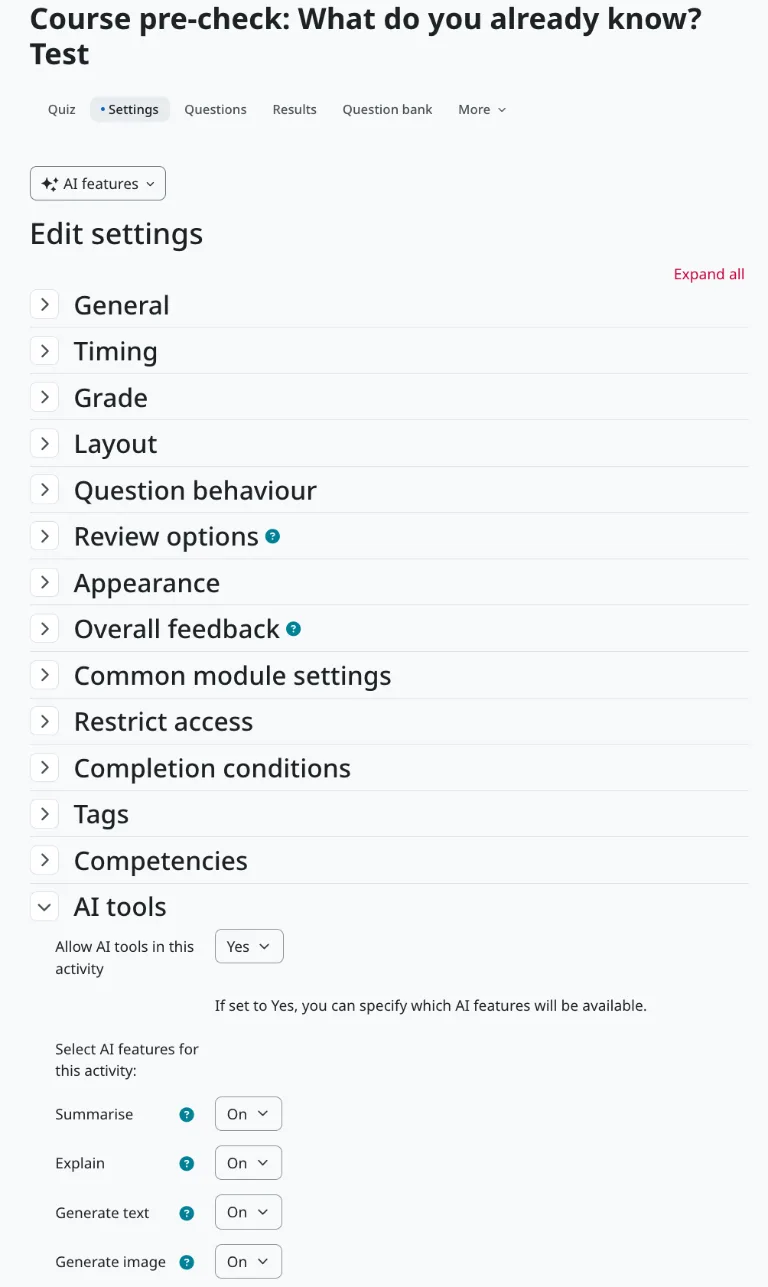
5. Hand control to teachers. Since Moodle 5.1, teachers decide in their course settings, in the “AI tools” section, whether to enable the “Allow AI tools for this course” setting.

If AI tools are allowed, an “AI tools” section also appears in the settings of each activity. There, the teacher sets “Allow AI tools in this activity”, then switches each available feature on or off individually, for example “Summarise” and “Explain” on a course page. The same section exists in quizzes and assignments. This is what lets you remove AI assistance from an assessment without switching it off for the whole course.
Note: this section only appears in activities if a provider and at least one Moodle core placement are enabled. If your teachers cannot find it, that is the first thing to check.
6. Inform users. The AI usage policy is displayed the first time AI is used. Write it with your Data Protection Officer (DPO): what data is sent, to whom, and for what purpose.
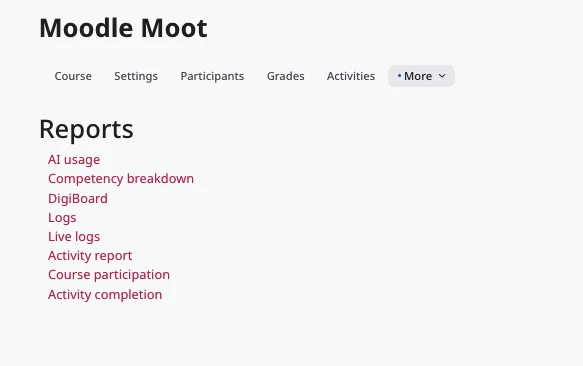
7. Monitor usage. The AI usage report, in the Reports tab of Site administration, shows which provider was used, by whom, in what context and with how many tokens. By default, it is restricted to the Manager role. Since Moodle 5.3, this report also exists at course level: teachers find it in their course under More > Reports > AI usage, where they see their learners’ usage, and each learner can see their own from their profile.
Choosing your provider: the data question
Choosing a provider is not just about the quality of the model. It determines where your teachers’ and learners’ data goes, and which law applies to it.
With an online provider (OpenAI, Anthropic, Azure AI, Gemini, Bedrock, DeepSeek), the submitted text is sent to the vendor’s service, under its terms and in the country where it processes the data. With Ollama, the model runs on your infrastructure. The data stays with you, but you need servers capable of running a model, often equipped with graphics cards, and a team to maintain them.
Server location alone is not enough to settle the matter, either. A company subject to US law may be required to respond to a demand for data stored in Europe. We go into this in detail in “Your data is hosted in Europe”: why that statement does not mean very much.
Multiple instances open up a middle way: an internally hosted model for actions involving learners’ work, and an online service for teachers generating illustrations. This split is decided action by action, not wholesale.
What Moodle AI plugins add
The official plugins directory now lists several dozen AI-related extensions. They fall into three technical families:
- provider plugins, which connect Moodle to an additional model or service;
- placement plugins, which add new uses to the interface (conversational assistant, activity generation, tutor) through the official subsystem;
- external tools, connected via LTI, an iframe or their own API key, which run alongside the subsystem.
In terms of use cases, there are four main needs: creating (generating an activity or H5P content from a document), supporting learners (tutoring), finding (natural language search) and administering (accounts, enrolments, participant tracking).
How do you choose between them? The first question is also the most decisive: is the plugin declared as a provider, as a placement, or does it ignore this architecture altogether? A plugin that follows it benefits from Moodle permissions, the usage policy, quotas and reports. The four other questions (data, pedagogy, per-activity settings, long-term viability) are covered in detail in Choosing a Moodle AI plugin: 5 questions to ask before signing.
A word of caution on content creation: generating a specific activity saves time; generating an entire course rarely does. Anything that can be reviewed in a few minutes is a genuine gain. A complete course generated in one go needs such heavy reviewing that the benefit disappears. We explain why in Generating a complete course with AI: why it is tempting, and why it is often a bad idea.
For learners: AI that helps them learn, or AI that does the work for them?
This is the question that demonstrations cannot settle. Research, however, is starting to answer it.
The study by Bastani and colleagues, published in 2025 in the Proceedings of the National Academy of Sciences, followed nearly a thousand secondary school students. With AI available during practice exercises, results improved: +48% with a standard assistant, +127% with an assistant equipped with pedagogical guardrails. But in the exam, without AI, the group that had used the standard assistant scored 17% lower than the group that had never had access to it. In the guided group, this drop largely disappeared.
For Moodle, this has two practical consequences. First, an AI tutor should guide (questions, hints, steps) rather than give the answer: see AI Tutor: The Difference Between an Assistant That Drives Progress and One That Does the Work. Second, AI must be able to step aside during assessments. For the native features, the per-activity settings in Moodle 5.1 make this possible. It is also the choice we made for our tutor, and we explain it in We chose to remove our AI tutor during quizzes. Here is why it is not a question of cheating.
AI in Moodle, GDPR and the AI Act
Two pieces of legislation govern the use of AI in a learning platform.
The GDPR. In Moodle, the standard mechanism for handling access or deletion requests is the Privacy API. A plugin that stores conversations or generated content must implement it. Otherwise, the institution runs into difficulty with the very first deletion request. This can be checked in the plugin’s code.
Moodle 5.3’s approach to reports also points in the right direction on this issue. Teachers can see that a learner has used AI, when, with which action and in what volume. But the request and the generated response are visible only to the person who made the request. Pedagogical monitoring remains possible without turning the tool into a surveillance system.
The AI Act. Since 2 August 2026, the European regulation on AI has added its own transparency and traceability obligations. We set out the practical checks in The AI Act is now in force. Is your AI learning tool compliant?
Our approach: Pimenko AI
We designed Pimenko AI on the basis of these findings, following Moodle’s architecture rather than bypassing it. The product is built on three components:
- a placement plugin, which displays the assistant in Moodle;
- a provider plugin, which declares our actions in the AI subsystem and forwards requests;
- our orchestrator, developed by Pimenko and hosted by Scaleway in France. It acts as the provider: it applies the processing specific to each mode, queries Mistral models and checks the format of responses before returning them to Moodle.
In practice, administrators find Pimenko AI exactly where they would expect it, on the “AI providers” and “AI placements” pages, alongside Moodle’s own features. Its actions follow the same rules: usage policy, role-based permissions, request limits. Conversations stay in Moodle, with a configurable retention period, and export and deletion via the native privacy tools.
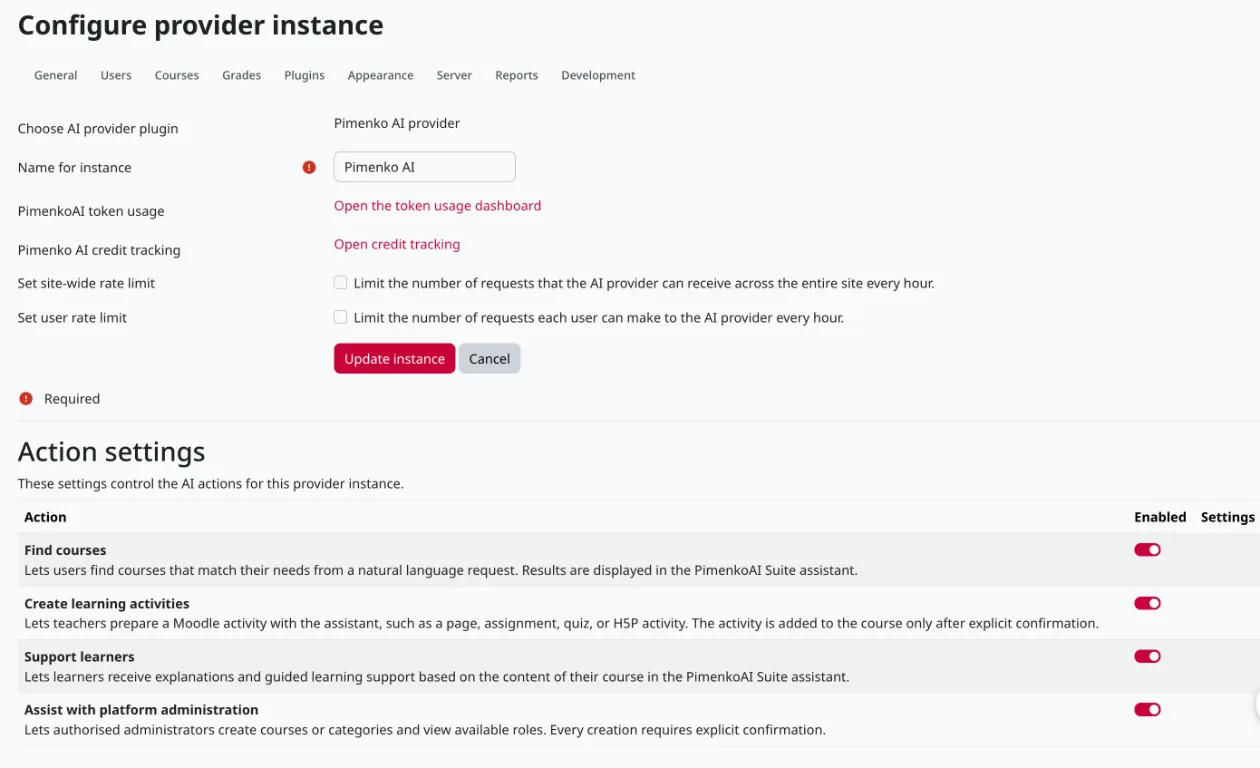
Several modes, which can be enabled one by one, cover what Moodle does not do natively:
- creation of learning activities, content or H5P activities, which the teacher approves before anything is added to the course;
- a tutor that guides without answering on the learner’s behalf, based on the course’s actual content, and that steps aside during assignments, quizzes and workshops;
- natural language course search;
- administration support, for both the site and the course: the assistant prepares the action, you confirm, Moodle carries it out.
Users are pseudonymised in Moodle before anything is sent: neither their name, nor their email address, nor their Moodle ID leaves the platform. Full details are on our security and data page.
The plugin is free. The Discovery plan, also free, lets you try out the modes on one course or with a small team: see our pricing. Pimenko AI is coming soon to the Moodle Marketplace.
Frequently asked questions
Does Moodle have built-in AI?
Yes. Since version 4.5, Moodle has included an AI subsystem that lets you connect a language model and offer AI features within the platform. It is disabled by default and must be configured by the administrator.
Which version of Moodle do you need to use AI?
The official AI subsystem is available from Moodle 4.5 onwards. Subsequent versions have extended it. Moodle 5.3 ships with seven providers: Amazon Bedrock, Anthropic Claude, Azure AI, DeepSeek, Gemini, Ollama and OpenAI. Per-course and per-activity AI settings have been available since Moodle 5.1.
Is AI in Moodle free?
The subsystem is part of Moodle, which is free and open source. However, the model service you connect is generally billed according to usage. If you host a model yourself with Ollama, the cost shifts to infrastructure. Request limits per site and per user help keep spending under control.
Can you use AI in Moodle without sending data externally?
Yes, with a model hosted on your own infrastructure, for example via Ollama. With an online service, you need to look at where the data is processed, by whom and under which law, beyond the location of the servers alone.
Can students use AI in Moodle?
Yes, if the placements are enabled: the AI capabilities are allowed by default for the Student role. The administrator can remove them, and since Moodle 5.1, teachers can disable AI tools in a course, or only in certain activities, such as a quiz or an assignment.
Can a teacher see what their learners ask the AI?
Since Moodle 5.3, teachers can see in the course report which AI actions their learners have used, when and in which activity. The content of the request and the generated response remain visible only to the learner concerned.
Can you generate a quiz with AI in Moodle?
Not natively: the built-in features are limited to generating text and images, and summarising or explaining content. Generating complete activities requires a plugin. It is one of the use cases covered by Pimenko AI.
About the author
Clément Prudhomme runs Pimenko, which he founded in 2015. For nearly twenty years he has been building bridges between technology and learning, including ten years in professional training for the humanitarian sector. Pimenko has been a certified Moodle Partner since March 2025. The team has contributed to Moodle core with the AdminPreset plugin, integrated since version 4.0. Find out more about Pimenko
Sources: Moodle documentation “AI tools”, “AI providers”, “AI placements”, “AI usage report” (docs.moodle.org, versions 4.5 to 5.3, accessed 14 November 2026); the “Moodle and AI” page (moodle.com); Bastani et al., “Generative AI without guardrails can harm learning”, PNAS, 122(26), 2025.